The Inventory module is for businesses that trade in goods and want documents for them: goods receipts, goods issues and stocktakes. It is part of the Standard and Business plans. The unit count on a product and its history work without the module, see Goods or service, and units in stock.
Turning the module on
- Open the Company menu, Modules and features.
- Find the Products card. When it is on, there is a switch below it: “Inventory: goods receipts, goods issues, stocktakes and movements across all products”.
- Turn it on and click Save.
The Products menu gets a new Inventory item with the tabs Movements, Receipts and issues, Stocktake and Stock value. If you turn the module on in the free plan, you see an explanation and a View plans button instead.
Goods receipt: goods arrived
Click Inventory and the yellow New goods receipt button. Fill in:
- Date. Today is prefilled.
- Supplier. Optional. As you type, the app suggests companies from your contacts.
- Product. Start typing the name, code or EAN and choose from the list. If you type a name and don’t choose, the product with that name is used. If there is none in your price list, it is created as new goods.
- Quantity and Purchase price per unit. The price is optional, but the stock value is calculated from it.
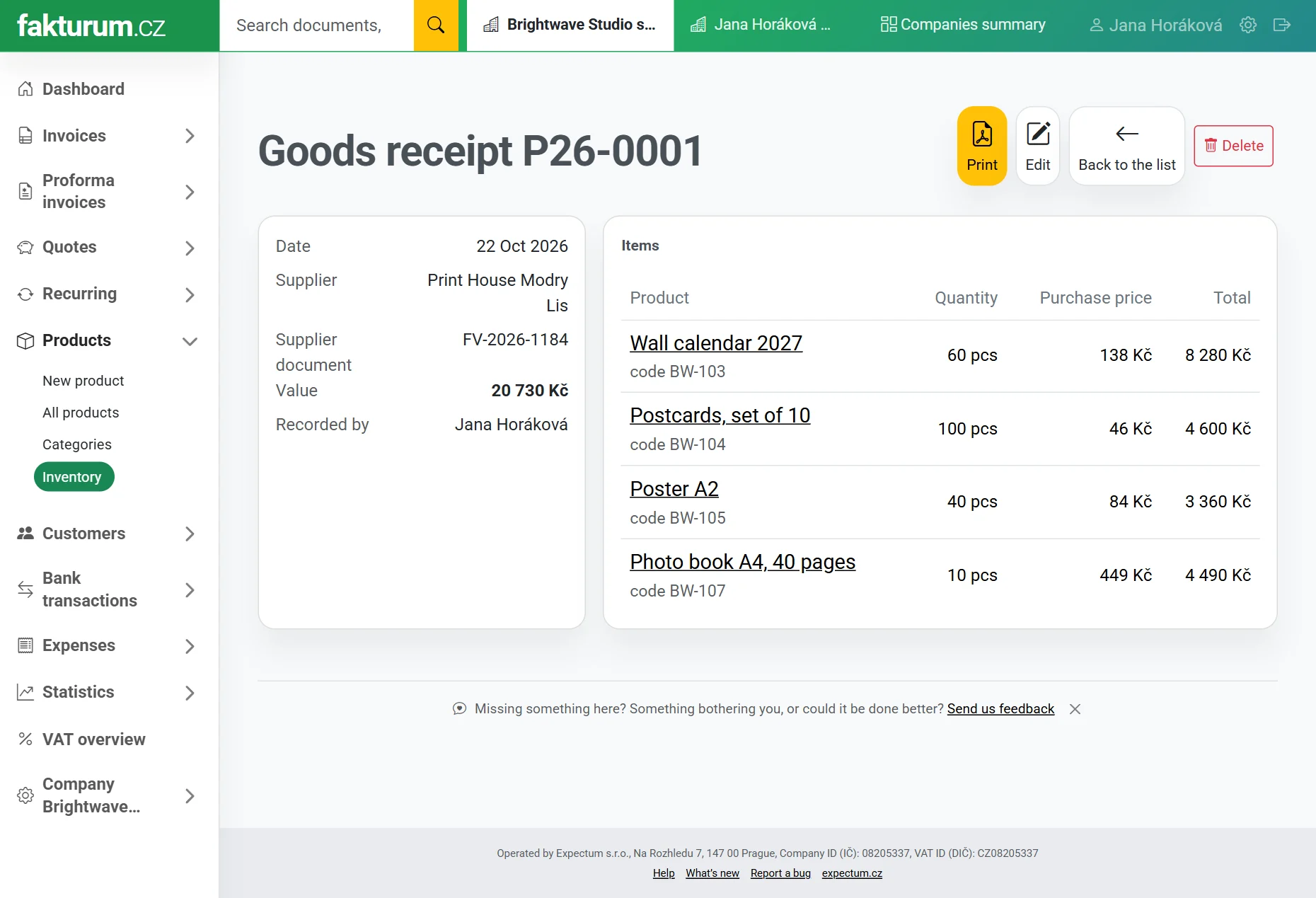
Add another line with the Add row button. Under More options you find the Supplier document number (the delivery note or invoice the goods came with) and a Note. Finally click Save goods receipt. The goods are added to your stock and the receipt gets a number, for example P26-0001.
A barcode reader works without any setup. Click into the Product field and scan. Every scan adds one unit; the same goods add up on one row.
Goods issue: goods left other than by invoice
Use the New goods issue button to record goods that left your stock without a sale. Instead of a supplier you choose a Reason: Own consumption, Damaged goods, Sample or gift, or Other. Sales to customers don’t belong here; the invoice deducts the goods itself.
If you issue more units than you have, the row warns you: “In stock: 20 pcs. Saving will take the stock below zero.” You can still save the goods issue.
Printing, editing and deleting
Open a goods receipt or goods issue on the Receipts and issues tab. In its detail, Print opens it as a PDF, Edit lets you correct it and Delete removes it. A deleted document moves to the Deleted filter, the stock goes back to what it was, and the document can be restored.
Movements: everything in one place
The Movements tab lists every movement of goods across all products: receipts, issues, sales by invoice, stocktakes and stock adjustments. Filter by movement type and by date from and to, and search by product, code, EAN or note. The Export button downloads the movements as a spreadsheet.
Credit notes and returned goods
A credit note (dobropis) doesn’t change your stock by itself. If the customer really returned the goods, tick “Return goods to stock” on the credit note. The price-list items are then added back. How to issue one is described in Credit notes and cancelling an invoice.
Inventory
- Goods or service, and units in stock
- Goods receipts, goods issues and stock movements
- Stocktake, stock value and low stock alerts
Write to us and we will help.
Ask a question