Stocktakes, stock value and low stock alerts belong to the Inventory module (Standard and Business plans). How to turn it on is described in Goods receipts, goods issues and stock movements.
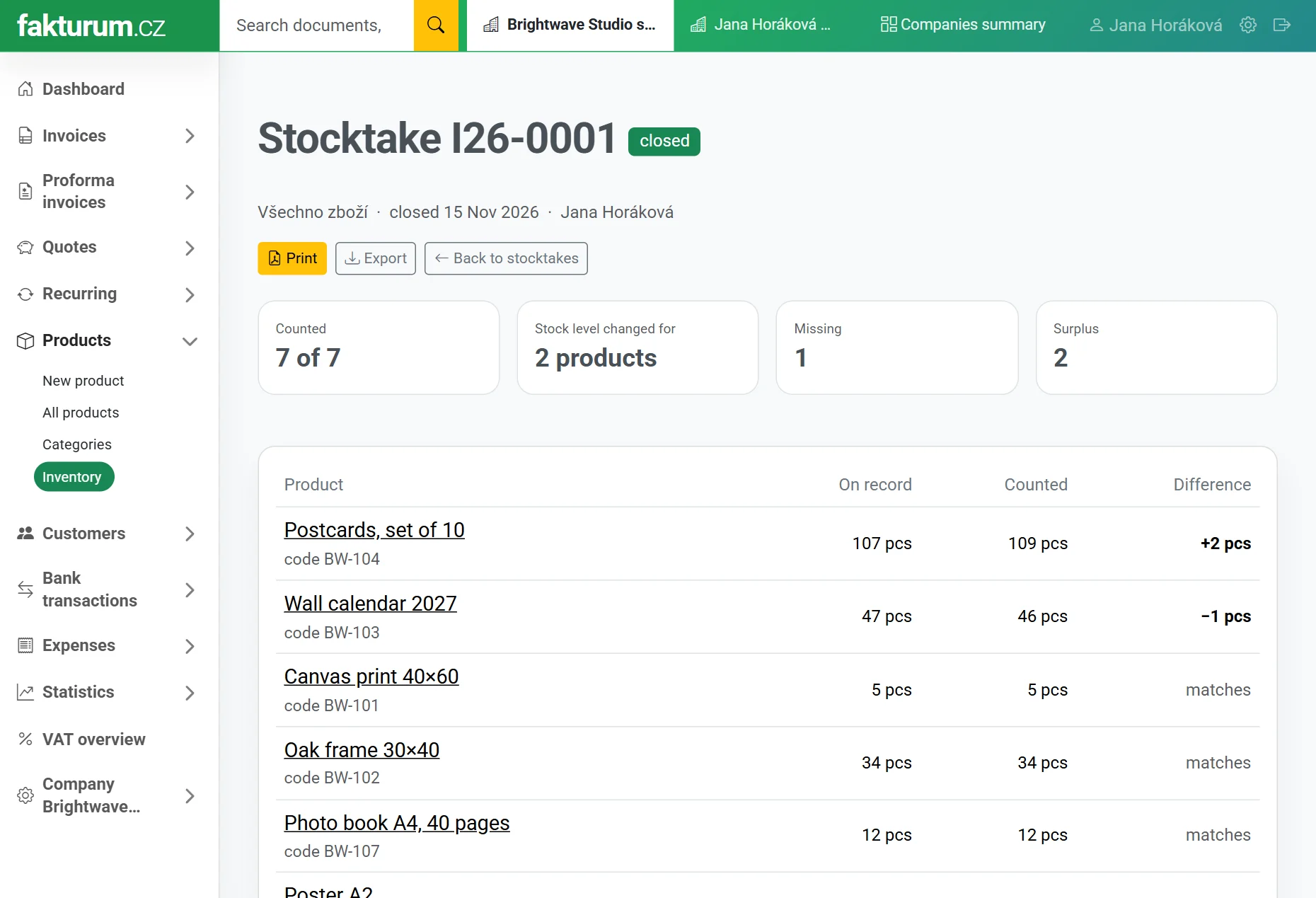
Stocktake
- Open Products, Inventory and the Stocktake tab.
- Choose whether you count all goods or just one category (the choice is offered when you use categories) and click Start stocktake.
- For each product you see how many units are on record. In the Counted column enter how many units you counted. The difference shows right away.
- Click Save counts. You can save as you go and come back to the stocktake at any time, for example on your phone in the stockroom.
- When you are done, click Close stocktake. The differences are written to the movements and stock levels are adjusted to the counted numbers.
Good to know:
- Anything you leave empty was not counted and stays unchanged.
- The difference is calculated against the records at the moment you enter the number. If you sell something between counting and closing, it doesn’t distort the result.
- A closed stocktake can’t be changed. Print it with the Print button or download it as a spreadsheet with Export.
- A stocktake in progress can be thrown away with the Discard stocktake button. Stock levels don’t change.
- Two stocktakes in progress can’t contain the same goods. Start the second one after you close or discard the first. Stocktakes of categories with no goods in common can run side by side.
- Find a product in the list by name, code or EAN in the field above it.
Stock value
The Stock value tab shows how much of what you have in stock and what it is worth. It is calculated as of today. For another day, for example 31 December, choose it in the “as of” field and click Recalculate. The Export button downloads the overview as a spreadsheet.
The value is a moving weighted average of the purchase prices from your goods receipts. Goods with no purchase price are not included in the total and are listed separately. Add the price in the product settings, or enter it on the next goods receipt.
It is a figure for your own records, not a year-end closing for your accounts.
Low stock alerts
For goods you can set the number of units at which the app should warn you. Edit the product, click More options and fill in “Alert when stock reaches”. When the stock falls to this number or below, the product gets a “Running low” badge in the list. A Running low filter then appears above the product list and shows only those goods. An empty field means no alert. Goods that have run out completely show “out of stock” instead.
Inventory
- Goods or service, and units in stock
- Goods receipts, goods issues and stock movements
- Stocktake, stock value and low stock alerts
Write to us and we will help.
Ask a question